SYSVOL D2/D4 – BurFlags * Critical & Authoritative Restore
D2 is set on the bad DC: Non-Authoritative restore: Use the D2 option on the DC with the empty SYSVOL folder, or the SYSVOL folder with the incorrect data. This way it will get a copy of the current SYSVOL and other folders from the good DC that you set the BurFlags D4 option on.
D4 is set on the good DC: Authoritative restore: Use the BurFlags D4 option on the DC that has a copy of the current policies and scripts folder (a good, not corrupted folder).
Steps for D4:
- Stop the FRS service on all DCs. To do this to all DCs from one DC, you can download PSEXEC and run “psexec \\otherDC net stop ntfrs” one at a time for each DC.
- On a good DC that you want to be the source, run regedit and go to the following key:
HKEY_LOCAL_MACHINE\System\CurrentControlSet\Services\NtFrs\Parameters\Backup/Restore\Process at Startup
In the right pane, double-click “BurFlags.” (or Rt-click, Edit DWORD)
Type D4 and then click OK. - On the bad DC, run regedit and go to the following key: HKEY_LOCAL_MACHINE\System\CurrentControlSet\Services\NtFrs\Parameters\Backup/Restore\Process at Startup
In the right pane, double-click “BurFlags.” (or Rt-click, Edit DWORD)
Type D2 and then click OK. - Quit Registry Editor, and then switch to the Command Prompt (which you still have opened).
- On the good DC, start the FRS service, or in a command prompt, type in “net start ntfrs” and hit <enter>
- On the bad DC, start the FRS service, or in a command prompt, type in “net start ntfrs” and hit <enter>
- On the bad DC, check the Sysvol folder to see if it started populating.
- Check for EventID 13565 which shows the process started
- Check for EventID 13516, which shows it’s complete
- Start FRS on the other DCs.
if you have a large number of DCs, the best bet is to force demote the bad DC, run a metadata cleanup to remove its reference from AD, then re-promote it.
Perform an authoritative synchronization of DFSR-replicated SYSVOL
Use the following procedure to perform an authoritative synchronization of SYSVOL by editing the msDFSR-Options attribute:
- Recover a domain controller to an earlier point in time.
- Sign in as an administrator, and open Active Directory Users and Computers.
- Enable both of the following from the View menu:
- Advanced Features
- User, Contacts, Groups, and Computers as containers
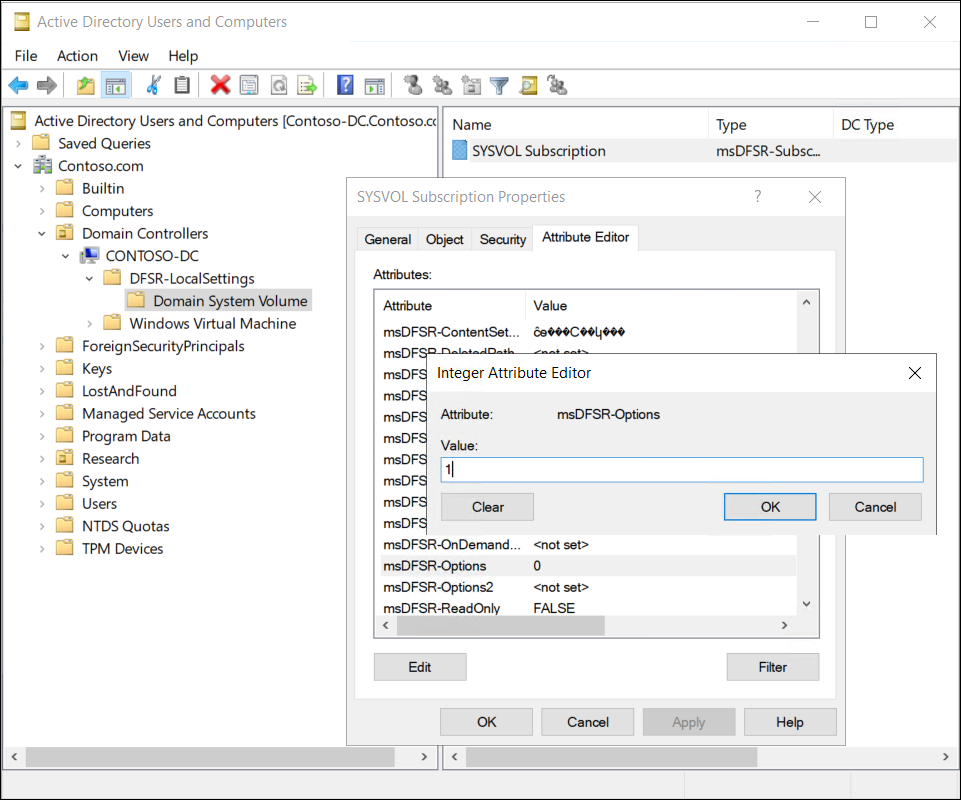
- In your domain, expand Domain Controllers, expand the specific domain controller you restored, expand DFSR-LocalSettings, and then select Domain System Volume.
- Right-click the SYSVOL Subscription object, and select Properties.
- As displayed in the following screenshot, select the Attribute Editor tab, and scroll down and locate the msDFSR-Options attribute.
- Double-click msDFSR-Options, enter 1, and then select OK.
This change marks the instance of SYSVOL on the configured domain controller as authoritative.