Enabling TLS 1.2 IN server
Steps to enable the TLS 1.2 in server:
- Start Registry Editor. To do this, right-click Start, type regedit in the Run box, and then click OK.
- Locate the following registry subkey:HKEY_LOCAL_MACHINE\System\CurrentControlSet\Control\SecurityProviders\SCHANNEL\Protocols
- Right-click the Protocol key, point to New, and then click Key.
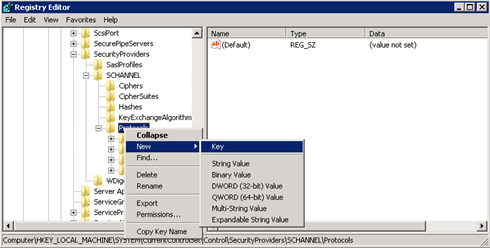
- Type TLS 1.2, and then press Enter.
- Repeat steps 3 and 4 to create keys for TLS 1.1, & TLS 1.3. These keys resemble directories.
- Create a Client key and a Server key under each of the TLS 1.0, TLS 1.1, and TLS 1.2 keys.
- To enable a protocol, create the DWORD value under each Client and Server key as follows:
- DisabledByDefault [Value = 0]
Enabled [Value = 1]
- DisabledByDefault [Value = 0]
- To disable a protocol, change the DWORD value under each Client and Server key as follows:
- DisabledByDefault [Value = 1]
Enabled [Value = 0]
- DisabledByDefault [Value = 1]
- On the File menu, click Exit.
To check if TLS 1.2 is enabled:
HKEY_LOCAL_MACHINE\SYSTEM\CurrentControlSet\Control\SecurityProviders\SCHANNEL\Protocols\TLS 1.2\Client\DisabledByDefault is present, the value should be 0.
HKEY_LOCAL_MACHINE\SYSTEM\CurrentControlSet\Control\SecurityProviders\SCHANNEL\Protocols\TLS 1.2\Client\Enabled is present, value should be 1.
Other issue:
http://forums.iis.net/t/1205752.aspx?IIS+7+5+FTP+over+SSL+error+with+TLS+1+2+